

IPTV Playlist Converter is a free online tool that allows you to convert IPTV playlists from one format to another. Since different IPTV players, Smart TVs, satellite receivers, and set-top boxes support different playlist formats, converting playlists is often the easiest way to make them compatible with your device.
The most common playlist formats are M3U and M3U8, but many devices require less common formats such as Enigma2, Azbox, Samsung, LG, OpenBox, MPClassic, Playlist.xspf, XML, Uppod, and others.
Finding playlists in these formats can be difficult, but converting an existing IPTV playlist usually takes only a few seconds.
You can convert either a free IPTV playlist downloaded from the Internet or one provided by a paid IPTV service.
If you’re not familiar with M3U playlists, read our guide on how to open an M3U IPTV file. If you want to merge multiple IPTV playlists into one, detailed instructions are available here.
Before converting a playlist, it’s a good idea to verify that it actually works. Many free IPTV playlists available online contain expired or inactive links. A simple way to test a playlist is to open it with VLC Media Player.
How to Convert an IPTV Playlist
There are several IPTV playlist converters available online. One of them can be accessed by following this link.
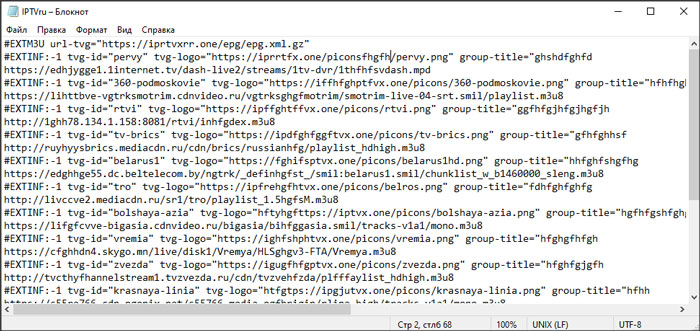
Before converting, open your playlist using the standard Windows Notepad application.

Alternatively, you can use the free Notepad++ editor, which is more convenient for working with larger playlists.

A typical IPTV playlist will look similar to the example below.
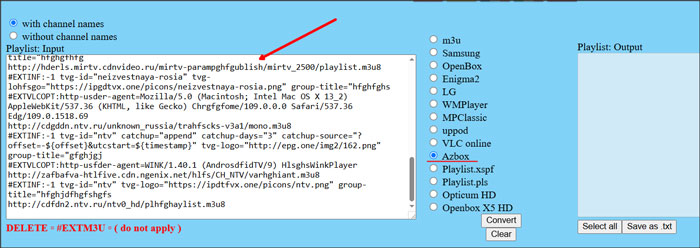
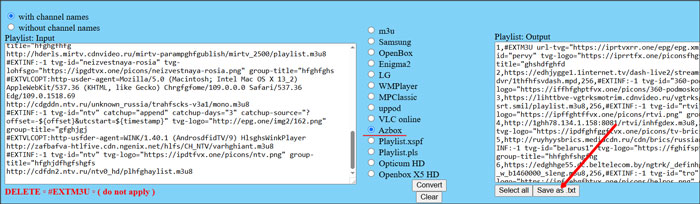
- Copy the entire contents of your IPTV playlist and paste them into the left panel of the converter.
- Select the output format you need from the list of supported devices and playlist formats, then click Convert.
- The converted playlist will appear in the right panel, ready to download.
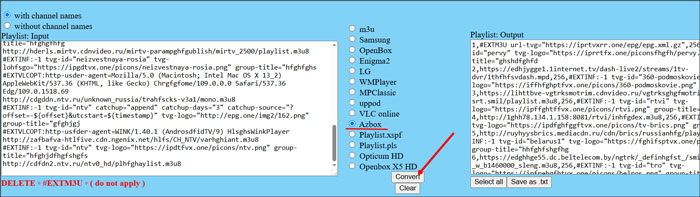
To save the converted playlist, click the Save button in the right panel. The playlist will be downloaded automatically in the selected format and will be ready to use with your device.
Conclusion
Using an IPTV Playlist Converter is one of the quickest ways to make an existing playlist compatible with a different IPTV player, Smart TV, satellite receiver, or media device. In just a few clicks, you can convert your playlist into the format required by your equipment.