

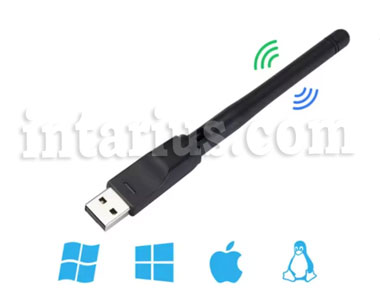
If your USB Wi-Fi adapter is not recognized by a DVB-T2 receiver, satellite receiver, or even your computer, the first thing you should check is the chipset it uses. Knowing the chipset is essential because many devices support only specific USB Wi-Fi adapters.
Your DVB-T2 receiver or satellite receiver may simply not support adapters based on your chipset. Likewise, if you connect the adapter to a computer, Windows may require the correct driver before it can recognize the device.
If you need drivers for USB Wi-Fi adapters based on the RT5370 or MT7601 chipsets, you can download them from this article.
How can you determine which USB Wi-Fi adapter is compatible with your DVB-T2 receiver or satellite tuner? The best approach is to check the specifications provided by the manufacturer. Unfortunately, many manufacturers do not list the supported chipsets, so identifying the chipset in your adapter is often the easiest solution.
How to Identify the Chipset in a USB Wi-Fi Adapter
- Connect the USB Wi-Fi adapter to your computer.
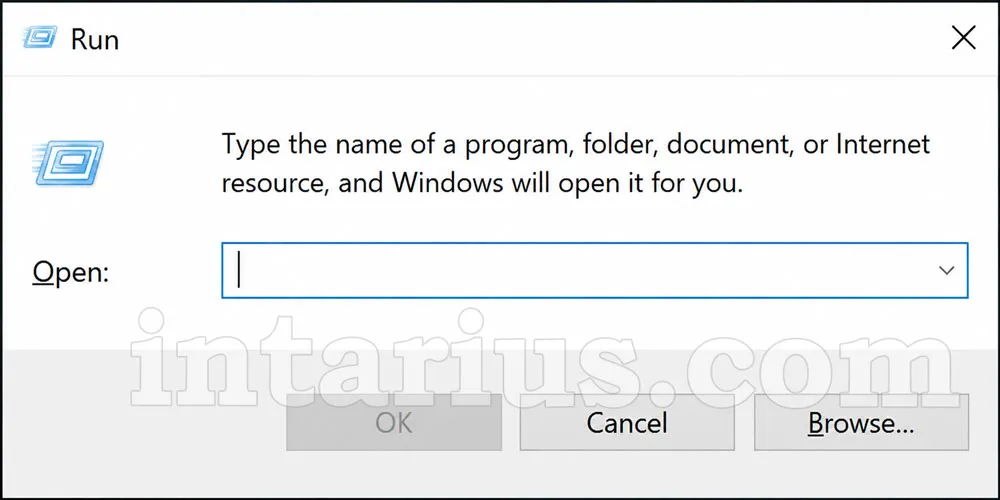
- Press the Win + R keyboard shortcut.

- The Run dialog box will appear in the lower-left corner of the screen.
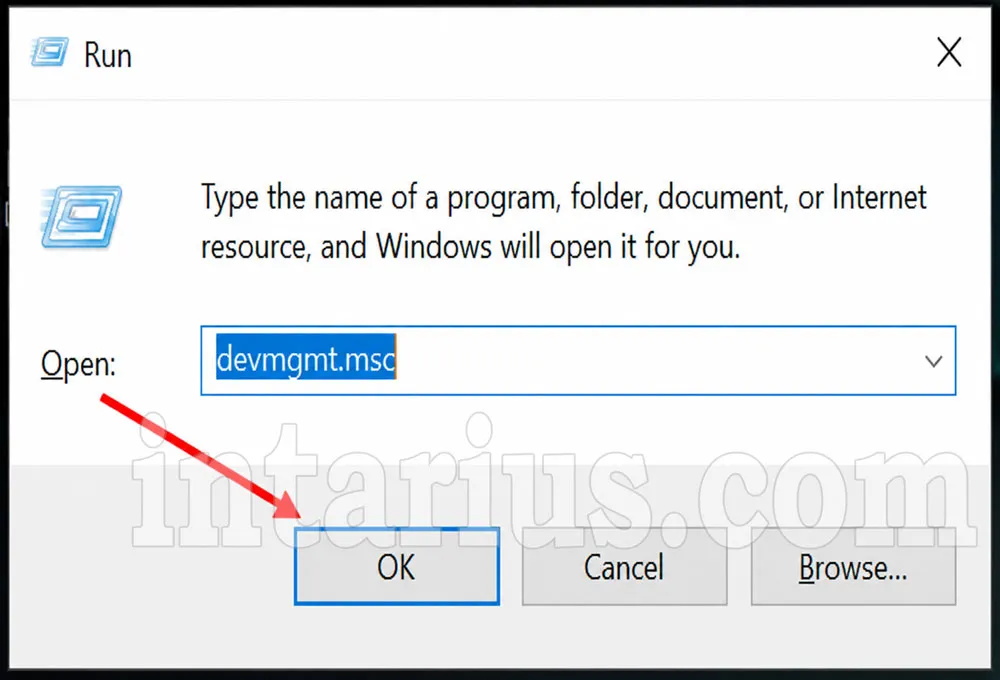
- Type devmgmt.msc into the box and click OK.
- The Device Manager window will open.
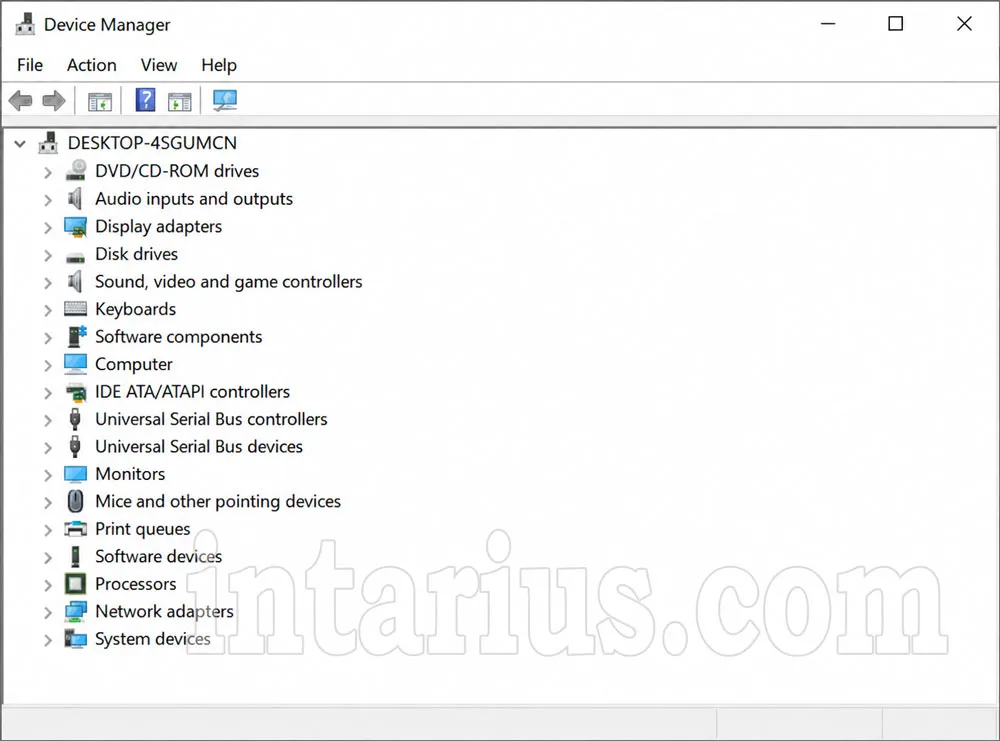
- Expand the Network adapters section to locate your USB Wi-Fi adapter.
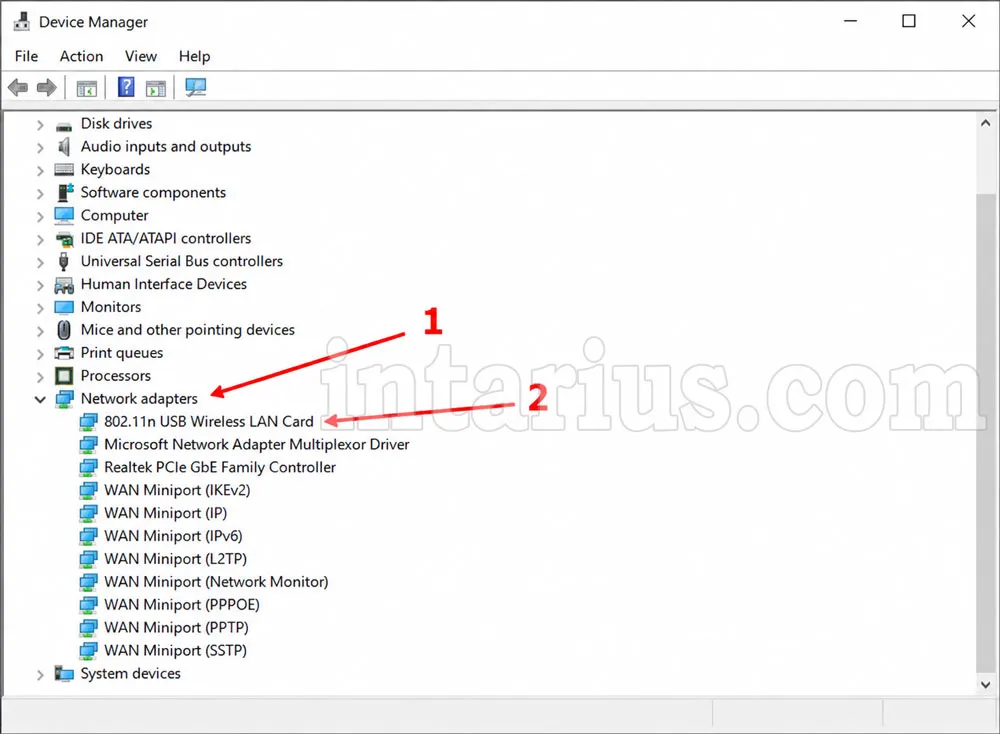
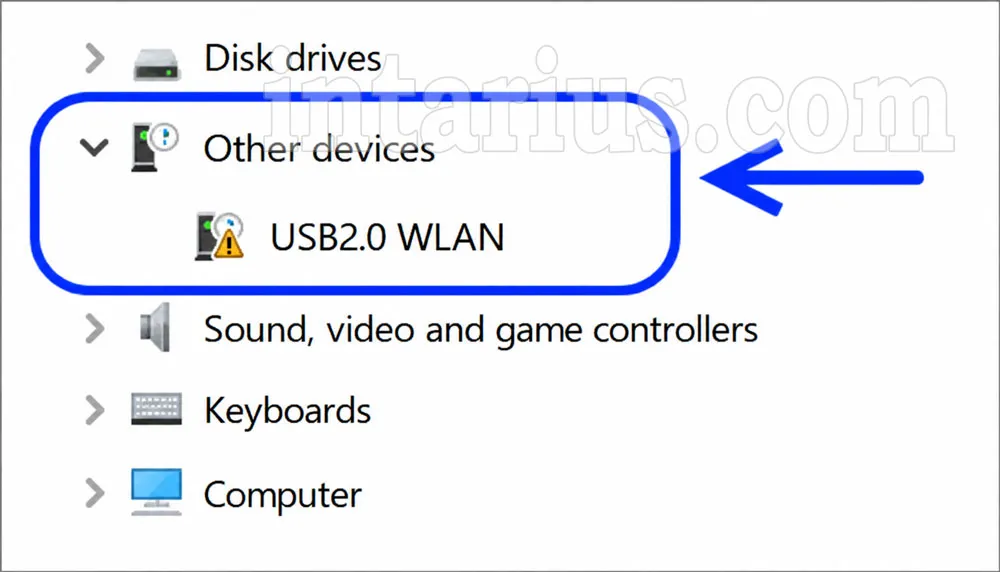
- If Windows does not recognize the adapter, it will appear under Other devices with a yellow warning icon. In most cases, this means the required driver is not installed. You can download the necessary driver from this article.
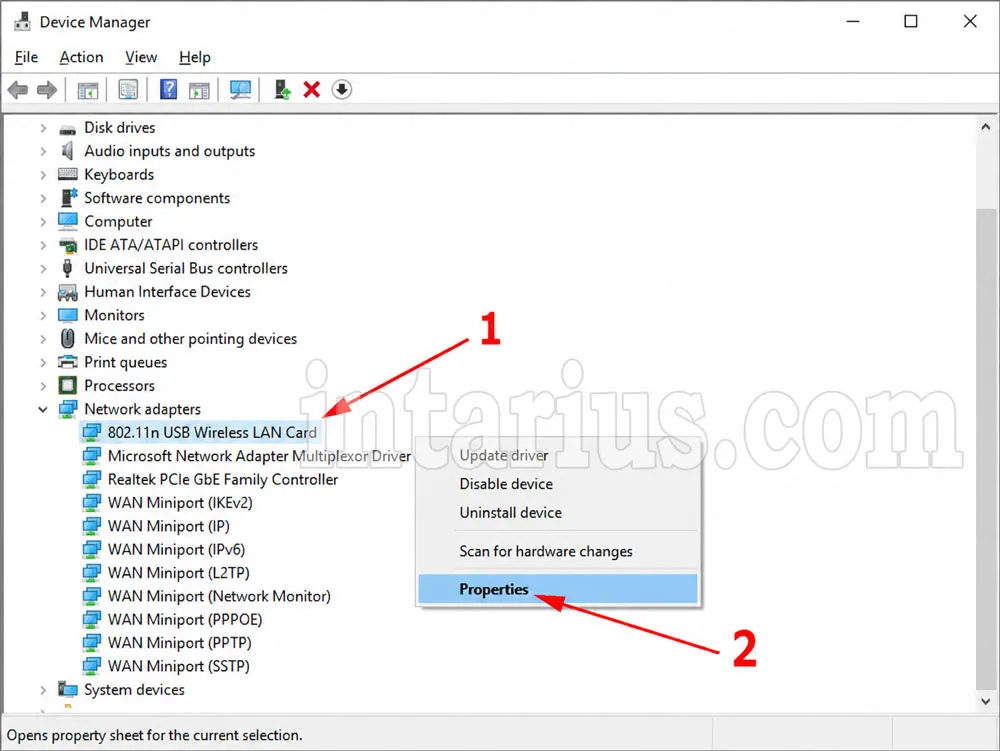
Next, follow these steps:
- Right-click your USB Wi-Fi adapter (in this example, 802.11n USB Wireless LAN Card) and select Properties.
- Open the Details tab.
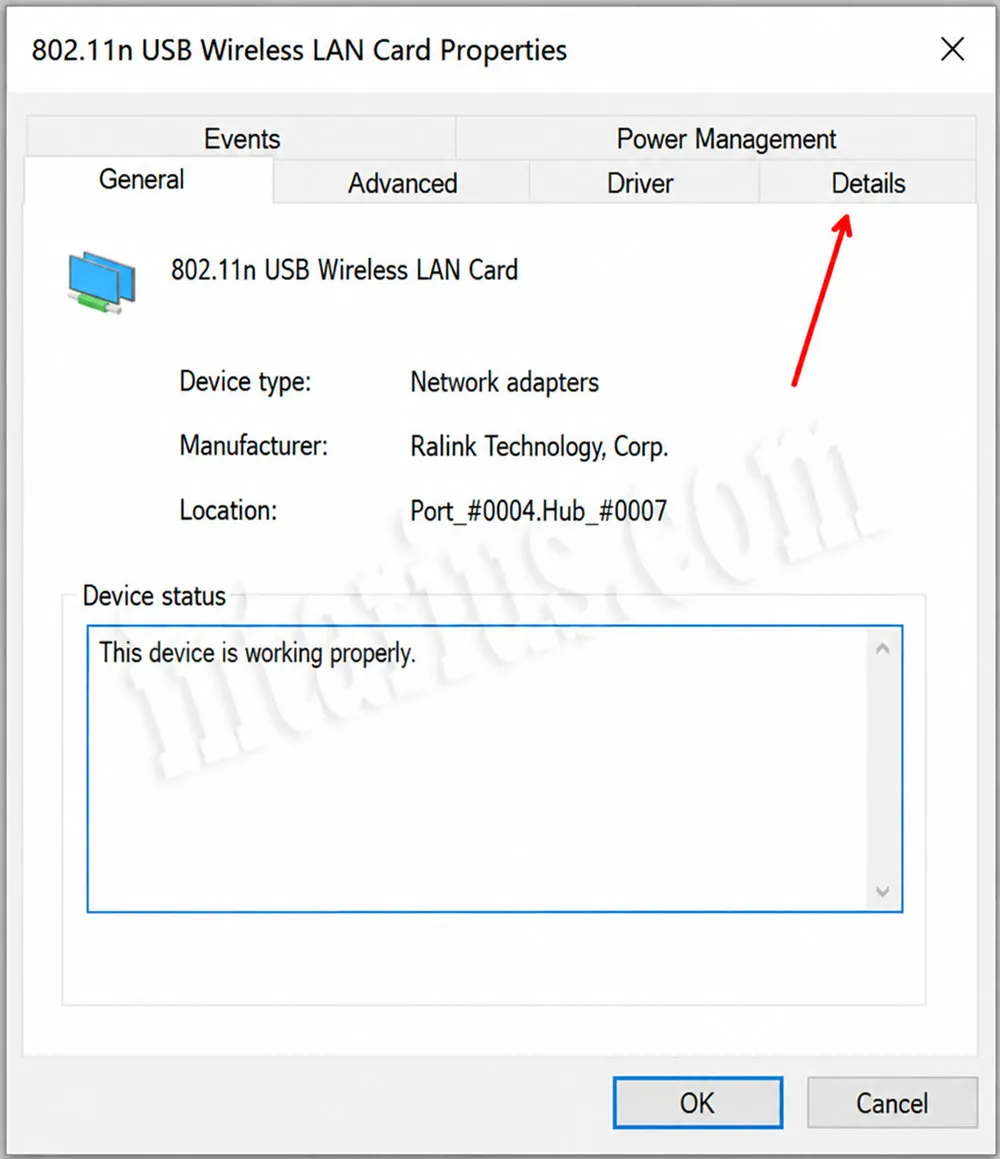
- From the drop-down list, select Hardware Ids.
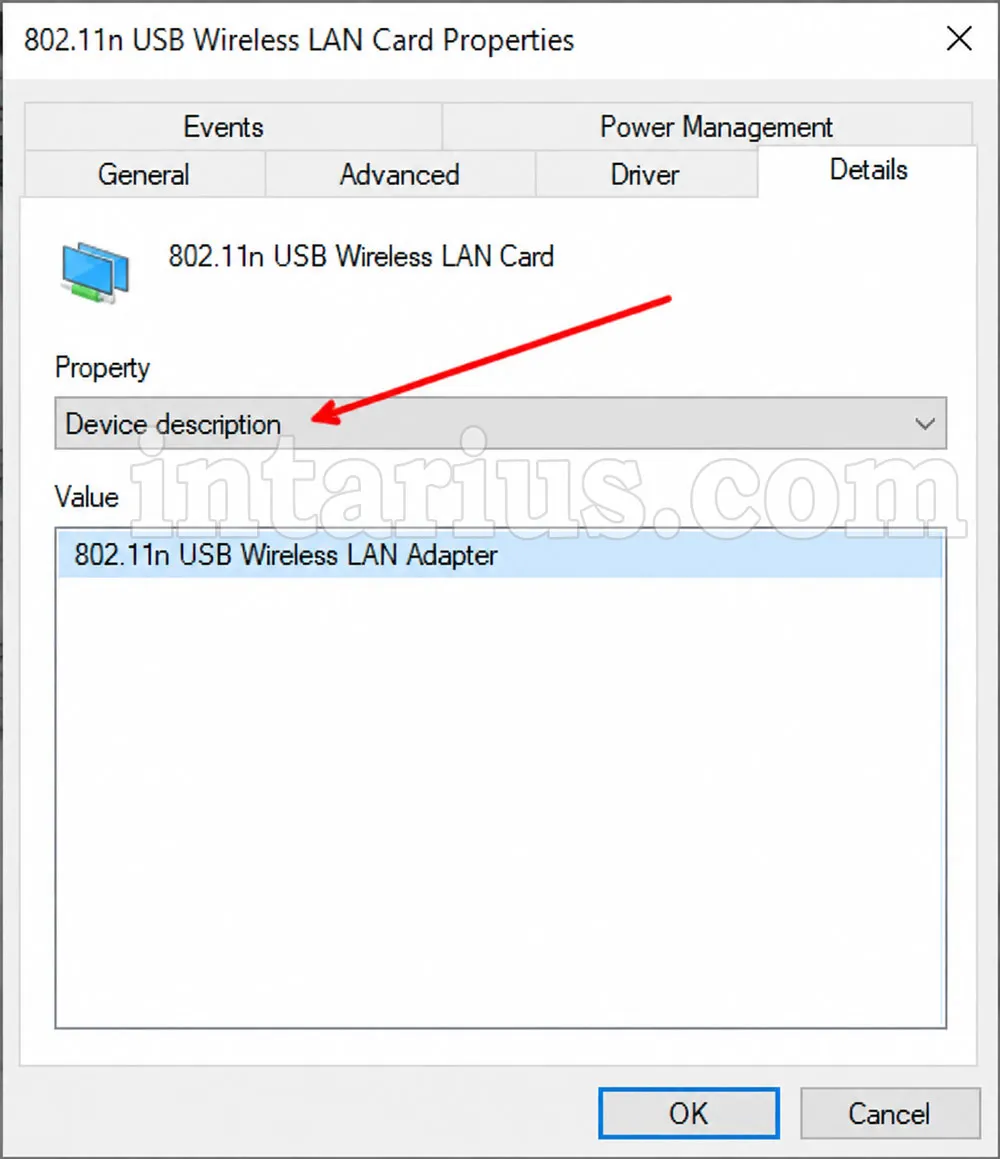
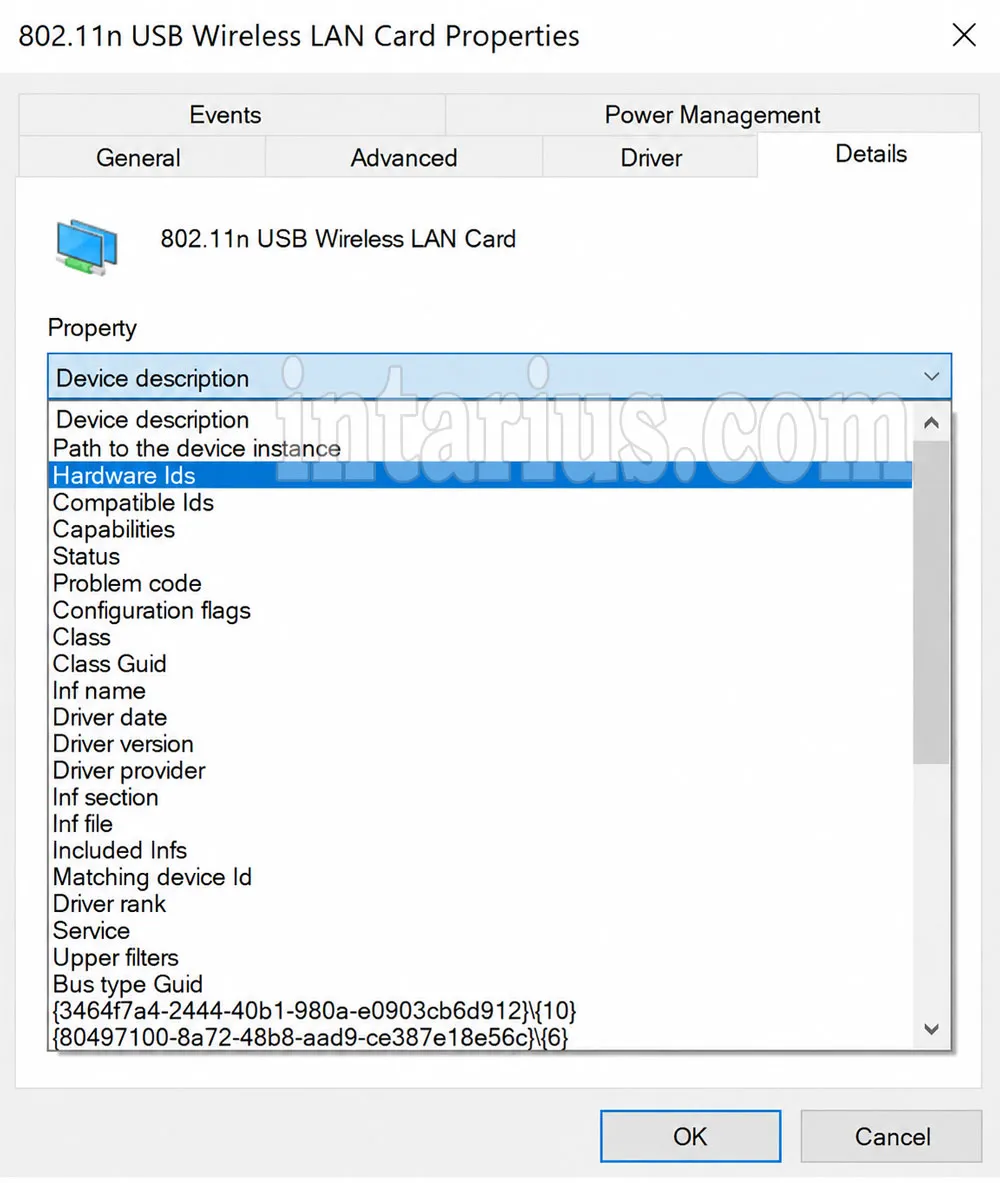
- The Hardware IDs contain the chipset number. In this example, the number 5370 identifies the adapter as being based on the RT5370 chipset.
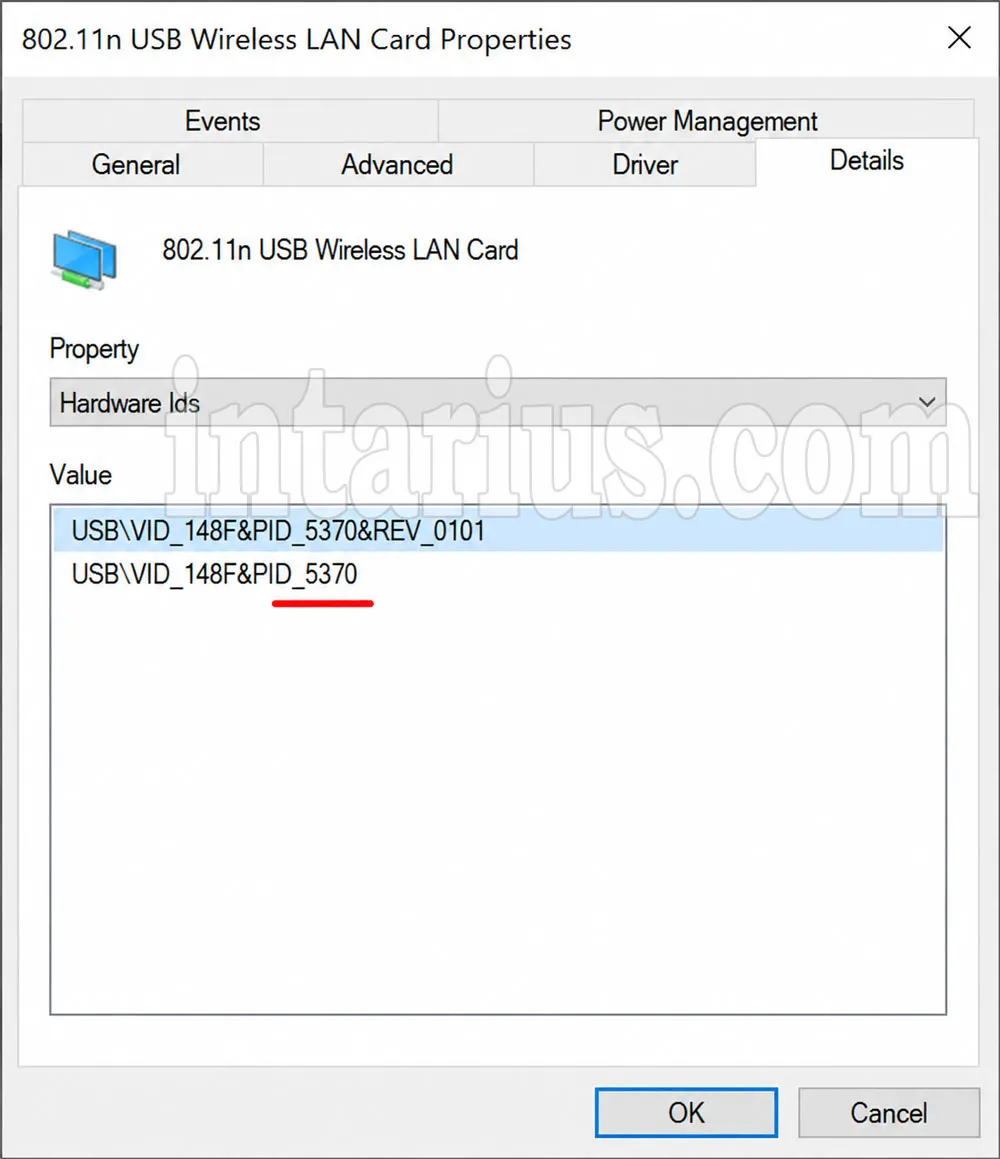
This USB Wi-Fi adapter uses the RT5370 chipset.
If you need to purchase a compatible USB Wi-Fi adapter:
- USB Wi-Fi adapter MT7601
- USB Wi-Fi adapter RT5370 (this model has been discontinued)