

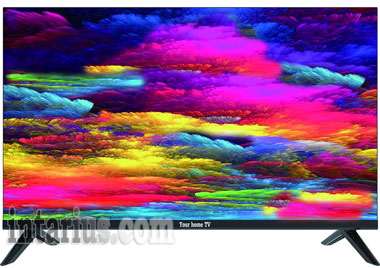
Buying a new TV is exciting, but before you start watching your favorite movies or TV shows, it’s worth spending a few minutes on the initial setup. Factory and showroom settings are designed to attract attention under bright store lighting, not to deliver the best viewing experience at home.
With a few simple adjustments, you can improve picture quality, optimize sound, and unlock all the features your Smart TV has to offer.
Preparing Your TV for First Use
Allow the TV to Reach Room Temperature
If your TV was delivered during cold weather, avoid turning it on immediately after unpacking. Let it sit indoors for 2 to 7 hours so it can gradually reach room temperature.
This helps prevent condensation from forming inside the TV, protecting the motherboard and other sensitive electronic components.
Complete the Initial Setup
When you power on the TV for the first time, follow the on-screen setup wizard:
- Select your preferred language.
- Choose the correct country or region.
- Connect to the Internet using Wi-Fi or an Ethernet (LAN) cable.
- Activate your Smart TV features.
Connecting your TV to the Internet allows you to receive software updates, install apps, and access streaming services right away.
Optimize Picture Settings
Most new TVs come with the picture mode set to Dynamic or Vivid. While these modes look impressive under bright showroom lighting, they often produce oversaturated colors, excessive brightness, and unnecessary eye strain during everyday viewing.
- Switch to Cinema or Movie Mode. These presets provide more natural colors, accurate contrast, and a comfortable brightness level, making them ideal for watching movies and TV shows.
- Disable Motion Smoothing. Features such as Motion Smoothing, TruMotion, Auto Motion Plus, or MotionFlow can make films look unnaturally smooth, creating the well-known “soap opera effect.” For the most cinematic experience, turn this feature off or set it to its lowest level.
- Turn Off Aggressive Eco Mode. If the TV automatically changes brightness based on room lighting, the picture may appear too dim or inconsistent. Disabling these power-saving features often results in a more stable and enjoyable viewing experience.

Update Software and Configure Technical Settings
Once your TV is connected to the Internet, the first thing you should do is check for firmware updates. Manufacturers regularly release updates that fix bugs, improve system stability, enhance HDR performance, and add support for new features.
- Install the latest firmware. Updating your TV ensures optimal performance, better compatibility with streaming apps, and improved security.
- Scan for TV channels. Run the automatic channel search to find available broadcasts. Depending on your signal source, select the appropriate standard:
- DVB-T/T2 for terrestrial digital television.
- DVB-C for digital cable TV.
- ATV for analog television, if it is still available in your region.
- Select the correct country or region. Choosing the proper region ensures that channel scanning and broadcasting standards work correctly.
Adjust Sound Settings
Proper audio settings can significantly improve your viewing experience.
- Choose the appropriate sound profile. Movie mode typically delivers clearer dialogue and a more immersive experience, while Music mode is better suited for concerts and live performances.
- Enable surround sound features. If you’re using a soundbar or home theater system, verify that Dolby Atmos or DTS is enabled whenever supported by your equipment.
Enable Game Mode for Consoles
If you plan to connect a PlayStation, Xbox, Nintendo Switch, or gaming PC, enable Game Mode. This reduces input lag and makes gameplay much more responsive.
If your TV supports HDMI 2.1, also make sure that features such as VRR (Variable Refresh Rate) and ALLM (Auto Low Latency Mode) are enabled for the best gaming experience.
Set Up Accounts and Security
- Sign in to your account. Logging into Google TV, Android TV, Samsung, LG, or another manufacturer account gives you access to the app store, cloud synchronization, and personalized recommendations.
- Configure parental controls. If children use the TV, set up a PIN code to restrict access to age-restricted content. If the default PIN is still active (often 0000), it’s a good idea to change it.
Final Thoughts
Taking a few minutes to properly configure your new TV will noticeably improve picture quality, sound performance, and overall usability. Updating the software, selecting the right picture mode, optimizing audio settings, and enabling the appropriate features will help you get the most out of your television from day one.