

IPTV has become increasingly popular as an alternative to traditional television. One of its biggest advantages is access to a wide range of TV channels, along with support for high-quality video formats such as HD, Full HD, and 4K. IPTV is most commonly used on Android TV boxes and Smart TVs running the Android operating system.
However, some users occasionally encounter playback errors on one or more IPTV channels. To resolve the issue, it is important to identify the cause and apply the appropriate solution.
Common IPTV Playback Problems
In most cases, IPTV channels begin playing normally but start buffering, freezing, or displaying a black screen after a few seconds or minutes. Playback may resume briefly before the problem repeats, making it difficult to watch TV comfortably.
These interruptions are usually caused by one of two factors: IPTV playlist issues or network-related problems.
Problems with the IPTV Playlist
If only one or several channels are affected, the problem is often related to the IPTV playlist rather than your device.
A newly installed IPTV player may not be fully compatible with your Android TV box or Smart TV. If the player worked correctly before but has recently started displaying playback errors, check whether an update is available.
It’s also worth checking your network equipment. Try replacing the Ethernet cable with a new one and verify that your router has IGMP Multicast support enabled. Some routers also require Bridge Mode or IPTV mode to be activated for proper multicast traffic.
Multicast and Network Issues
Many IPTV providers use the UDP protocol to deliver live television streams. Unlike TCP, UDP prioritizes speed over error correction, which makes it ideal for live video but more sensitive to packet loss and unstable network connections.
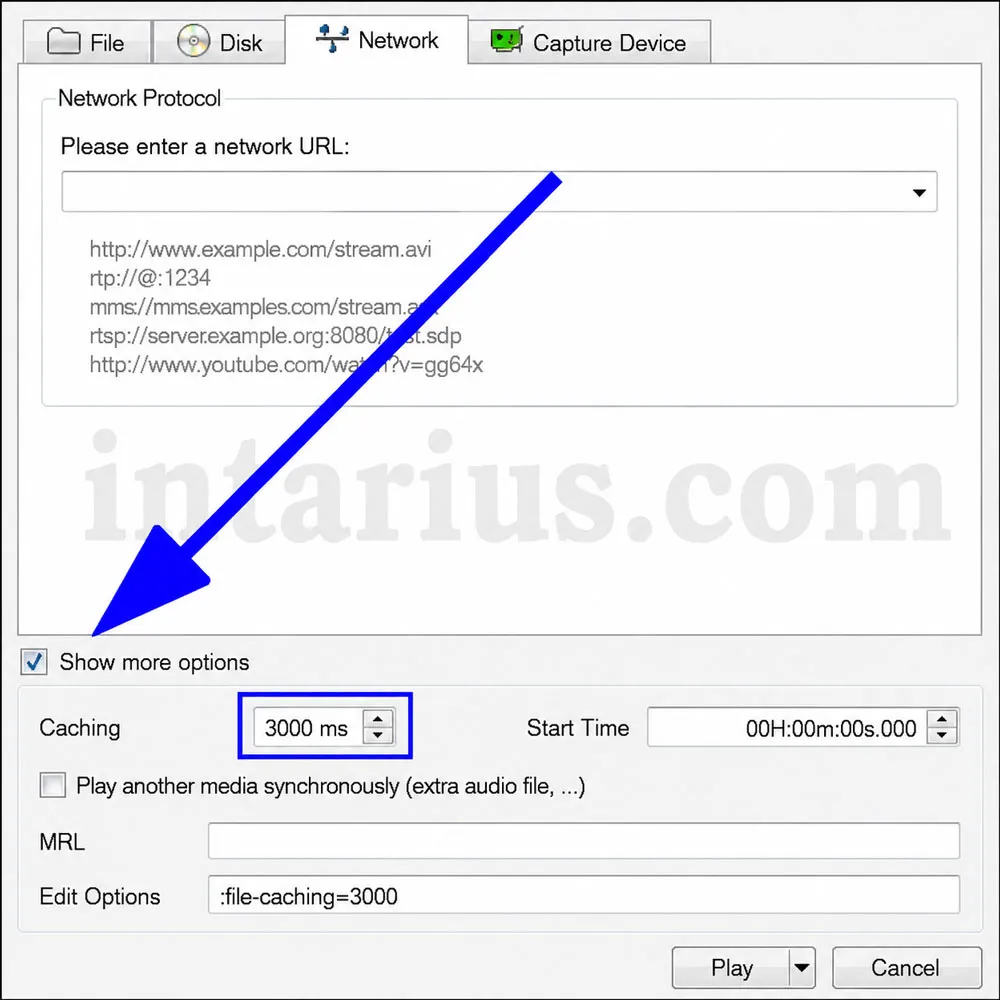
If packets are lost during transmission, video playback may freeze or display buffering messages. Increasing the player’s cache can often improve playback stability.
For most IPTV players, setting the network cache to approximately 3000 milliseconds (3 seconds) provides a good balance between smooth playback and low latency.
Your Internet connection also plays a major role. A slow or unstable connection can easily cause IPTV buffering and playback interruptions. You can learn about the recommended Internet speed for IPTV here.
How to Fix IPTV Playback Errors
If your TV displays an error such as “Unable to play”, try the following troubleshooting steps:
- Open your IPTV channel list and wait until it has finished loading completely.
- If required by your IPTV provider or application, verify that the correct server address and port (for example, 192.168.1.1:2121) are configured.
- Reset your VLC or IPTV player’s multicast settings to their default values, then reconnect to the IPTV service.
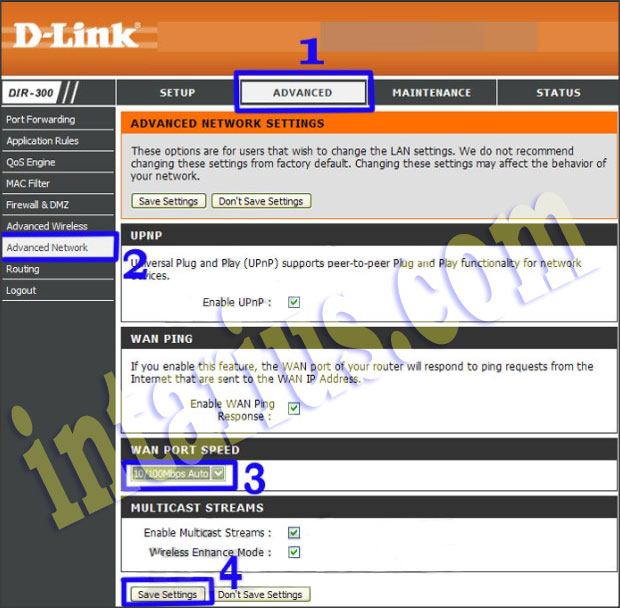
- Open the Advanced Network settings and enable Multicast Streams if your application supports this option.
Additional Troubleshooting Tips
If a smartphone icon appears on the TV screen while casting IPTV content, the problem is often related to your phone’s Wi-Fi connection rather than the television itself. Move closer to the router or switch to a more stable wireless network.
If every IPTV channel experiences playback errors, the problem may be caused by the Android TV box itself. In this case, check for firmware updates, perform a factory reset if necessary, or contact an authorized service center for diagnosis.
If your device is outdated and no longer performs well with modern IPTV services, upgrading to a newer Android TV box with faster hardware and better network performance may provide a more reliable viewing experience.
Conclusion
Most IPTV playback errors on Android TV are caused by playlist issues, incorrect player settings, unstable Internet connections, or router configuration problems. By checking your playlist, increasing the cache size, enabling multicast support, and ensuring a stable network connection, you can resolve the majority of playback issues and enjoy uninterrupted IPTV streaming.