An .m3u file is the most widely used playlist format for IPTV. It is supported by Smart TVs, Android TV boxes, DVB-T2 receivers, modern satellite receivers, computers, smartphones, and many other devices capable of playing IPTV streams.
Despite containing hundreds or even thousands of TV channels, an M3U playlist is usually very small. That’s because it is simply a text file containing channel names and links to the streaming sources, rather than the video content itself.
An M3U playlist can also include groups and categories, making it easier to organize channels into sections such as Movies, News, Sports, Music, Kids, and more.
If you’d like to organize channels into categories, you can find detailed instructions here.
If you need to convert an M3U playlist into another format for devices such as Samsung Smart TVs, LG TVs, Enigma2 receivers, OpenBox receivers, Windows Media Player, or Media Player Classic, you can use this IPTV playlist converter.
How to Open an M3U File
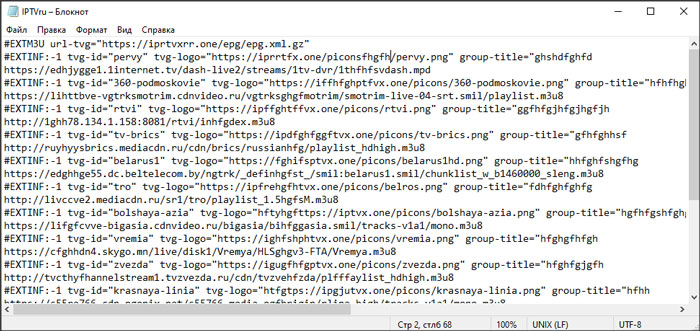
Since an M3U playlist is simply a text file, you can open and edit it using the standard Notepad application included with Microsoft Windows.

For larger playlists or more advanced editing, many users prefer Notepad++, which offers syntax highlighting, better search functions, and improved handling of large text files.

A typical M3U IPTV playlist looks similar to the example below.
How to Play an M3U IPTV Playlist
To watch IPTV on a computer, one of the best choices is VLC Media Player. It is a free, powerful media player that supports virtually all popular audio and video formats, including IPTV playlists.
VLC is easy to use, works on Windows, macOS, and Linux, and is suitable for both beginners and experienced users. You can download it from the official VideoLAN website here.