


IPTV sometimes starts buffering, freezing, or slowing down even though your equipment appears to be working properly. Your Internet connection may seem fast enough, the network is connected, and your TV box or Smart TV functions normally, yet IPTV channels still freeze or stop playing.
In most cases, the problem is caused by network issues, incorrect player settings, router configuration, or hardware limitations. In this guide, we’ll look at the most common causes of IPTV freezing and explain how to fix them.
Check Your Internet Connection
A slow or unstable Internet connection is one of the most common reasons why IPTV buffers or freezes. If the data stream cannot be delivered quickly enough, the player has to pause while additional data is downloaded.
If IPTV freezes on your computer, TV box, or Smart TV, follow these steps:
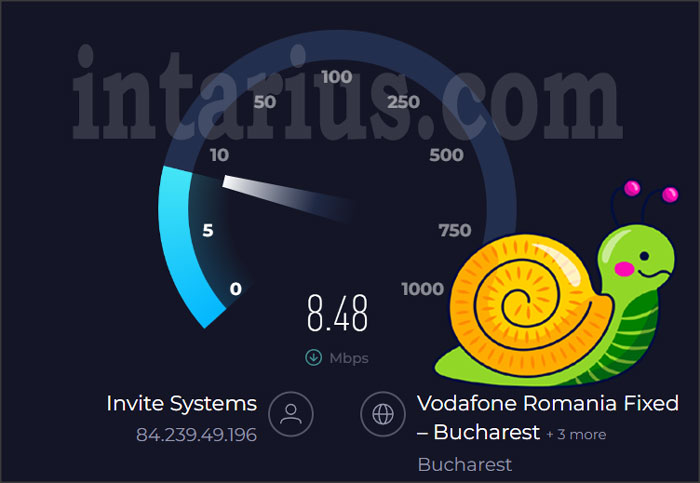
- Test your wired Internet speed. A stable wired connection should provide at least 3 Mbps for standard IPTV viewing. You can read more about the recommended Internet speed here.
- Check your Wi-Fi performance. Wireless networks should ideally provide at least 15 Mbps, especially if several devices are connected at the same time.
- Inspect your router. The closer your IPTV device is to the Wi-Fi router, the stronger and more stable the signal will be. You can measure your Internet speed using Speedtest.
IPTV Freezes on a Computer
If IPTV works poorly only on your computer, the problem may be related to the IPTV player, your router, or your computer’s hardware.
Check the IPTV Player Settings
Incorrect player settings are a common cause of playback issues. Try adjusting the following options:
- Set the Cache value to approximately 3–5 seconds.
- Enable Deinterlacing if your player supports this feature.
- Enable Update at Startup to ensure the latest playlist information is loaded automatically.
You should also verify that your IPTV playlist is working correctly. Damaged or outdated links inside the playlist can cause channels to freeze or stop playing. Utilities such as Playlist Finder can help identify invalid playlist entries.
Check Your Router
If you are connected through a Wi-Fi router, try connecting your computer directly to the Internet using an Ethernet cable. If IPTV works normally after bypassing the router, the router is likely causing the problem.
To improve router performance:
- Log in to the router’s administration panel.
- Locate the IGMP or Multicast settings.
- Enable IGMP Proxy, IGMP Snooping, or Multicast Transmission, depending on your router model.
- If necessary, temporarily disable your firewall or antivirus software to check whether they are blocking IPTV traffic.
Hardware Performance
If IPTV freezes only while playing HD, Full HD, or 4K channels, your computer may not have sufficient hardware performance. The graphics card or processor may struggle to decode high-resolution video smoothly.
After changing hardware acceleration settings or updating graphics drivers, restart your computer to ensure the changes take effect.
Part 2 of 2 will cover IPTV issues on Smart TV Boxes and Smart TVs, playlist problems, buffering settings, hardware failures, and additional troubleshooting tips.
IPTV Freezes on an Android TV Box
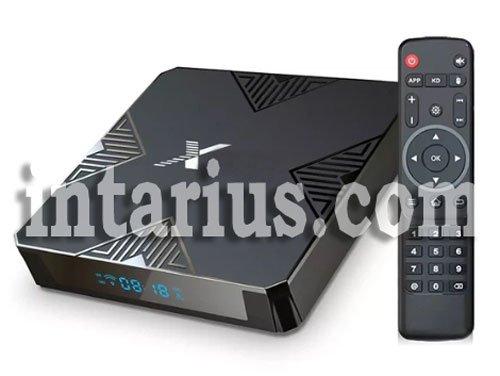
Android TV boxes are one of the most popular devices for watching IPTV. If your IPTV service freezes or buffers on a TV box, try the following troubleshooting steps.
- Check whether all channels are affected. If every channel freezes, test your Internet connection and restart your router. If only a few channels have problems, the issue is most likely related to your IPTV playlist or provider.
- Try another IPTV player. Open the same playlist in a different IPTV application. If playback improves, the original player may not be fully compatible with your TV box.
- Close unnecessary applications. Too many apps running in the background can reduce system performance and cause IPTV playback issues.
If none of these steps solve the problem, clear the application cache, restart the TV box, and test the IPTV service again.
IPTV Freezes on a Smart TV
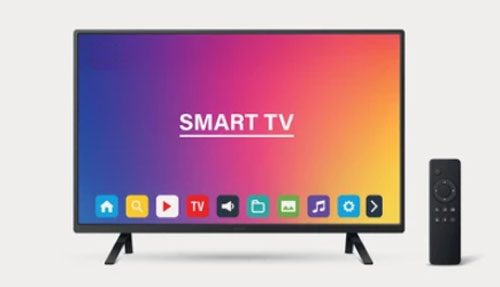
If you experience picture freezes, audio interruptions, or complete playback failures while watching IPTV directly on a Smart TV, try the following solutions.
- If your Smart TV connects through a wireless bridge, make sure the WDS Bridge function is configured correctly (if supported by your router).
- Verify that the Ethernet cable is securely connected if you are using a wired network connection.
- Reset the TV to its factory settings and configure IPTV again.
- Install the latest firmware available for your TV model, then reinstall and reconfigure your IPTV application.
- Try a different IPTV player to determine whether the problem is related to the application itself.
- Check whether other devices on your home network are downloading large files or streaming high-quality video, as this can reduce the available bandwidth.
- If your IPTV player allows it, increase the buffering value. A setting of around 32 often improves playback on slower or unstable connections.
- Restart the Smart TV after making any changes.
Playlist and IPTV Player Problems
Sometimes the IPTV player and Internet connection are working properly, but the playlist itself contains outdated or invalid channel links.
If every channel freezes, the problem is usually related to the Internet connection, IPTV server, or player. If only certain channels are affected, the IPTV playlist is the most likely cause.
Keep in mind that watching Full HD or 4K channels requires a faster and more stable Internet connection than standard-definition streams.
IPTV playlists typically use the .m3u format. If the playlist contains invalid links or the player’s buffer is set too low, playback interruptions may occur.
For example, in VLC Media Player you can increase the network cache as follows:
- Open Media.
- Select Open Network Stream.
- Enable Show More Options.
- Set the Caching value to approximately 3000–30000 ms, depending on your connection quality.
- If the problem continues, try another IPTV player or use a different playlist.
Hardware Issues
If none of the previous recommendations solve the problem, the issue may be hardware-related.
Faulty network equipment, an aging router, damaged cables, or insufficient device performance can all affect IPTV playback. If your device is still under warranty, contact the manufacturer or service center for assistance.
If your equipment is functioning correctly but IPTV continues to freeze, consider replacing the Ethernet cable or upgrading to a newer router with a faster processor and full Multicast (IGMP) support.
Conclusion
Most IPTV freezing and buffering problems are caused by network issues, incorrect player settings, outdated playlists, or insufficient hardware performance. By checking your Internet connection, adjusting your IPTV player, updating your router settings, and ensuring your equipment is working correctly, you can resolve the majority of playback issues and enjoy a smoother IPTV viewing experience.